
1.2. Creating Sales Orders
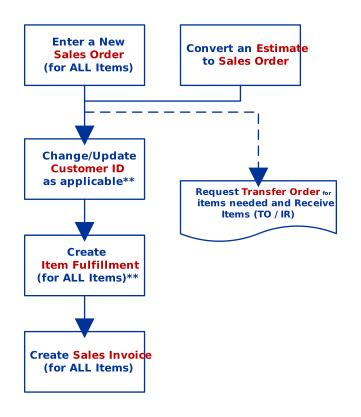
Sales Orders can be created in two ways:
- Create a Sales Order from an existing Estimate. If you have entered an estimate that contains information about a potential customer order, you can convert the estimate into a sales order. Then, NetSuite uses the exact information from the estimate to create the sales order. You do not need to re- enter the information.
- To view existing estimates, go to Opportunities > Transactions > Estimates.
- Once the Estimate page is viewed, click on the “Sales Order” button to convert
- Create a new, individual Sales Order. You can enter information onto a sales order form without an existing estimate.
- To enter a Sales Order, go to Opportunities > Transactions > Sales Orders > New.
You can click Edit button next to a Sales Order to make changes to the order.
**Important**
- Change/Update the Customer ID during Estimate/Sales Order if applicable before converting into Sales Invoice. Failure to update will detach related transactions and will keep the Sales Order in “Open” status.
- Creating Item Fulfillment will lead to Negative Inventory for unavailable items. Negative inventories will zero-out (correct the balance) only once all Transfer Orders & Item Receipts are completed.
After you have created sales orders for items, you can view or process the sales order at each stage to track the progress of the order:
See Sales Order Advanced for more information about creating sales orders.